VCF Operations Orchestrator
How I Write Beautiful Code in VCF Operations Orchestrator using ESLint and Prettier

I use a consistent code style for VCF Operations Orchestrator development. It makes files easier to navigate, patterns easier to identify and code easier to read.
Applying industry conventions and team preferences manually can be tedious. Configured tools automate formatting and keep the codebase consistent.
I use two tools:
- ESLint – A widely used JavaScript and TypeScript linter with customisable rules. It identifies code problems and can apply fixes automatically to improve quality and consistency.
- Prettier – A formatter that applies consistent style. It does not check logic or enforce coding best practices. Although ESLint can also format code, Prettier is increasingly favoured for its minimal configuration, speed and consistent output.
Together, these tools can detect issues such as:
- Missing JSDoc blocks for functions and classes
- Incorrect or inconsistent indentation
- Lines exceeding the maximum allowed length
- Use of single quotes instead of preferred double quotes
- Multiple consecutive empty lines
- Missing spaces around unary operators
You can customise the rules to suit your preferences or team standards. Prettier deliberately offers fewer choices to keep formatting consistent with minimal configuration.
The tools can also apply fixes automatically when you save a file. This reduces the time spent correcting formatting and syntax issues by hand.
This example shows style issues the tools can detect and fix:
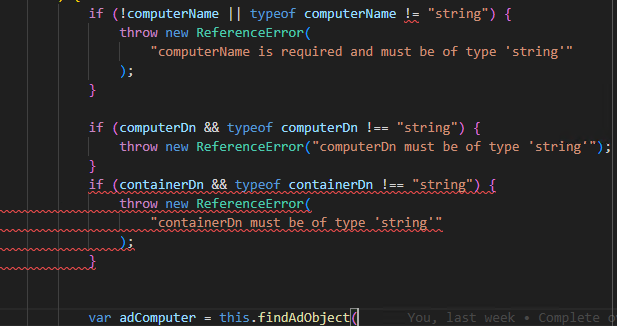
The screenshot shows three issues:
- The first
ifstatement does not use strict inequality (!==). - There is no newline between the second and third
ifstatements. - There are two consecutive newlines following the third
ifstatement.
With the tools configured, saving the file corrects these issues automatically.
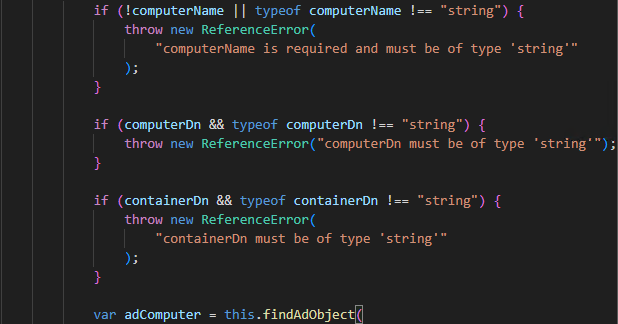
These screenshots show Visual Studio Code, which I configure later in the post. You can get the same results from the command line, including in a CI pipeline or without an IDE.
Configure the development environment for ESLint and Prettier
This guide uses Windows and assumes you have:
- Your source code available locally.
- Build Tools for VMware Aria to manage Orchestrator code in a local development environment.
- Node.js, which should already be installed for Build Tools.
Open a command prompt in the project's root directory. Run this command to install the ESLint and Prettier dependencies:
npm install --save-dev eslint prettier jsdoc @eslint/js eslint-config-prettier eslint-plugin-prettier eslint-plugin-jsdocPlace both configuration files in the project root. These examples come from my project:
- eslint.config.js defines the ESLint rules.
- .prettierrc configures Prettier.
After installing the dependencies and adding the configuration, run either tool from the command line. Both can check files without changing them or write automatic fixes. The following commands show these two modes.
# ESLint
## Check Mode
npx eslint "src\main\resources\**\*.js"

## Write Mode
npx eslint "src\main\resources\**\*.js" --fix


# Prettier
## Check Mode
npx prettier --check "src\main\resources/**/*.js"

# Write Mode
npx prettier --write "src\main\resources/**/*.js"
In check mode, Prettier identifies files that do not match its formatting rules.
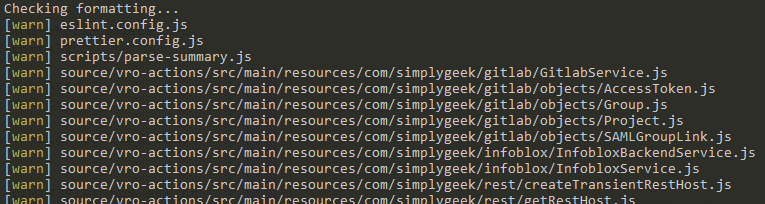
ESLint also reports the line number and rule for each issue.

Prettier handles formatting, but some ESLint rules also control style. The overlap can cause conflicting fixes and extra processing. Disable the conflicting ESLint rules to use the tools together. The example configuration already does this.
Use ESLint and Prettier with Visual Studio Code
In Visual Studio Code, search the extensions marketplace for ESLint and Prettier – Code formatter.
Add the following to your VS Code user or workspace settings:
{
    // Use the new ESLint flat config style
    "eslint.useFlatConfig": true,

    // Only format when you have a Prettier config in your project:
    "prettier.requireConfig": true,

    // Use Prettier for all supported languages:
    "[javascript]": {
        "editor.defaultFormatter": "esbenp.prettier-vscode"
    },
    "[javascriptreact]": {
        "editor.defaultFormatter": "esbenp.prettier-vscode"
    },
    "[typescript]": {
        "editor.defaultFormatter": "esbenp.prettier-vscode"
    },
    "[typescriptreact]": {
        "editor.defaultFormatter": "esbenp.prettier-vscode"
    },
}
The configuration above requires manual Prettier formatting and displays ESLint issues in the editor. To apply automatic formatting and fixes when you save, add the following settings:
    // Format on save:
    "editor.formatOnSave": true,

    // use ESLint to fix issues (including padding) on save:
    "editor.codeActionsOnSave": {
        "source.fixAll.eslint": "explicit"
    },
Prettier usually formats files almost instantly. ESLint can be slower on large files or with complex rules. If you notice delays, run this command against a file to inspect ESLint performance:
set TIMING=1&& npx eslint src\main\resources\somefile.jsThe command produces a report like this:
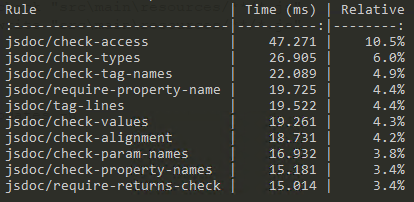
I found JSDoc rules relatively slow, and most could not apply fixes automatically. I excluded them from processing on save. The following VS Code User or Workspace setting excludes specific rules from automatic runs:
  "eslint.options": {
    "overrideConfig": {
      "rules": {
        // disable the slow rules in the editor on save
        "jsdoc/check-access": "off",
        "jsdoc/check-values": "off",
        "jsdoc/require-description": "off",
        "jsdoc/valid-types": "off",
        "jsdoc/no-undefined-types": "off",
        "jsdoc/check-alignment": "off",
        "jsdoc/check-param-names": "off",
        "jsdoc/check-tag-names": "off",
        "jsdoc/check-types": "off",
        "jsdoc/check-property-names": "off",
        "jsdoc/require-property-description": "off",
        "jsdoc/require-jsdoc": "off",
      }
    }
  },
Automating formatting and style checks helps keep Orchestrator code consistent. The same approach also works for other JavaScript projects.
If you use other tools or have suggestions for my configuration, I would like to hear them.
Related articles

VCF Operations Orchestrator: Why I Write Actions and Not Workflows (Mostly)
Why I move Orchestrator logic into reusable JavaScript actions, keep workflows small and use development tools for testing and code review.

VCF Operations Orchestrator: Auto-Document Your Actions with Ease
Generate Markdown documentation from Orchestrator actions, class wrappers and JSDoc comments in a Build Tools JavaScript project.

VCF Automation – Native Git Integration vs Alternatives
Compare native Git integration, APIs, Terraform and Build Tools for managing VCF Automation infrastructure and content.
Join the discussion
Sign in with GitHub to leave a comment. View discussions on GitHub.