Automation
Patching Windows Server ISOs with SlipStreamer

Building a Windows Server VM from an older ISO leaves updates to install before the machine is ready. Repeat that build, and the same patching work comes back. I have built SlipStreamer, a PowerShell tool that applies update packages to Windows Server installation images and creates a new ISO for subsequent builds.
SlipStreamer supports Windows Server 2019, 2022 and 2025. The worked examples and screenshot in this article use Windows Server 2025. For another supported version, use its configuration file, matching ISO and update packages, and version number in the commands. The resulting ISO can become the installation media for a Packer build, with the selected updates already integrated into the Windows image.
What SlipStreamer does
Slipstreaming means integrating updates into installation media before installing the operating system. SlipStreamer uses Deployment Image Servicing and Management (DISM) to service sources\install.wim, then uses oscdimg.exe to create an ISO with BIOS and UEFI boot entries.
A WIM can contain several images, such as different Windows Server editions or installation options. Each image has an index. SlipStreamer can patch all indexes or just the ones selected in the configuration.
For each requested Windows Server version, the tool:
- Validates the configuration, locates the base ISO and update packages, and estimates the required disk space.
- Copies the ISO contents into a working directory.
- Mounts each selected Windows image, applies the packages, and commits the changes.
- Optionally cleans up the image and exports only the selected indexes.
- Creates the output ISO and attempts to clean up temporary files and mounts.
You supply the ISO and update packages. SlipStreamer does not download updates or run Packer. It services install.wim; it does not separately update boot.wim or the recovery image. The resulting ISO therefore needs validation before becoming part of a regular build process.
What you need
Run SlipStreamer on a Windows host with PowerShell 5.1 or later, from an elevated session. The host’s DISM tools must support servicing the target Windows image.
Install the Deployment Tools feature from the Windows Assessment and Deployment Kit (ADK) to provide oscdimg.exe. Check Microsoft’s ADK download and compatibility information when selecting the version for your host and target operating system.
You also need:
- An ISO for the supported Windows Server version you want to patch, containing
sources\install.wim. The tool rejects media that contains onlyinstall.esd. - Matching
.msuor.cabupdate packages from the Microsoft Update Catalog. - Disk space for the extracted media, DISM scratch files and the output ISO. The tool checks estimated requirements per volume before starting the main work.
Get SlipStreamer
The source code is available in the SlipStreamer repository on GitHub. The examples use version 1.0.0. If Git is installed, clone that version and open its directory:
git clone --branch v1.0.0 https://github.com/simplygeekuk/SlipStreamer.git
Set-Location SlipStreamer
Alternatively, download the version 1.0.0 source ZIP and extract it. Open PowerShell in the extracted project directory before running the commands below. The download contains the tool and configuration files used here. Supply your own Windows Server ISO and update packages.
Prepare the media and updates
The project keeps inputs, outputs and temporary files in separate directories. For this Windows Server 2025 example, the relevant files and directories are:
SlipStreamer.ps1
config/
  2025.psd1
iso/
  base/
  output/
updates/
  2025/
work/
logs/
Place the Windows Server 2025 base ISO in iso/base/ and the packages in updates/2025/. Set BaseIso to the filename of your ISO. The configuration below uses the exact filename of my source media.
Select packages for the correct Windows Server version and architecture. Read the target update’s KB article for prerequisites rather than assuming that one cumulative update is sufficient for every base ISO.
Check the package order
SlipStreamer uses filenames to estimate the installation order: servicing stack updates (SSUs) first, cumulative updates next, and .NET Framework updates last. This is a filename heuristic, not dependency resolution. A filename that contains only a KB number might not identify the package type.
To set the order explicitly, prefix every package filename with a number followed by an underscore, such as 01_, 02_ and 03_. Keep the rest of each downloaded filename intact. The numeric ordering override applies only when every package has a recognised prefix.
Windows Server 2025 can require earlier checkpoint cumulative updates before the target update. Check Microsoft’s checkpoint update guidance and the target KB article for the required packages and sequence. SlipStreamer does not discover these prerequisites for you.
Review the configuration
Each Windows Server version has a PowerShell data file under config/. Here is my Windows Server 2025 configuration from config/2025.psd1:
@{
    BaseIso        = 'en-us_windows_server_2025_x64_dvd_b7ec10f3.iso'
    OutputIso      = 'Server2025_patched.iso'
    UpdatesPath    = 'updates/2025'
    Indexes        = @(2)
    VolumeLabel    = 'SERVER2025'
    ResetBase      = $true
    TrimToSelected = $true
    VolumeLicense  = $true
}
This configuration patches index 2, runs component cleanup, and removes the other images from the output WIM. It also writes a volume-channel configuration for Windows Setup. Check the source ISO’s image indexes before using these settings, because index 2 does not identify the same edition on every ISO.
| Setting | Effect |
|---|---|
Indexes |
Selects the images to patch. An empty array or an omitted setting selects all images. |
ResetBase |
Runs component cleanup with /ResetBase, which prevents removal of the integrated updates. |
TrimToSelected |
Exports only the selected images into a replacement WIM. |
VolumeLicense |
Writes a volume-channel sources\EI.CFG, replacing that file if it exists. |
ScratchDir |
Overrides the default DISM scratch directory under work/<version>/scratch. |
Selecting indexes alone does not remove the other images: they remain in the ISO without the new updates. Enable TrimToSelected to remove them. Trimming requires an explicit index selection; with an empty selection, the tool warns and retains all images.
The exported images are renumbered from 1. If an unattended installation selects an image by index, check that selection against the output WIM. Do not assume that an index identifies the same edition across different source ISOs.
The VolumeLicense option changes Setup’s channel configuration. It does not activate Windows or convert an evaluation edition into a different edition.
Run SlipStreamer
From an elevated PowerShell session in the project directory, inspect the planned operations and package order:
.\SlipStreamer.ps1 -Version 2025 -WhatIf-WhatIf skips the main extraction, servicing and ISO creation operations. It still writes a transcript and invokes mount cleanup, so it is not a completely read-only operation. It also cannot prove that a package will apply successfully.
The screenshot below shows a Windows Server 2025 dry run using .\SlipStreamer.ps1 -Version 2025 -WhatIf. It lists the selected index, disk-space estimate and three update packages in their planned installation order.
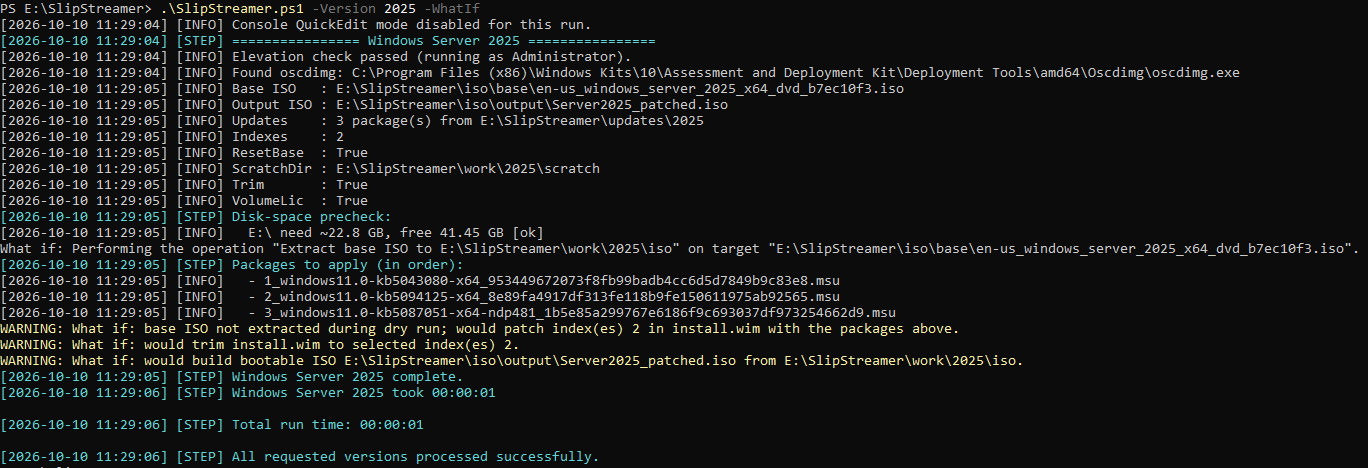
The completion message refers to the dry run; no patched ISO was created by this command.
After reviewing the configuration and package order, run the build:
.\SlipStreamer.ps1 -Version 2025With this configuration, the output is iso/output/Server2025_patched.iso. A subsequent build replaces an existing ISO at that path. Copy any output you need to retain before running again.
Use -KeepWork to retain the working directory for investigation:
.\SlipStreamer.ps1 -Version 2025 -KeepWorkTranscripts are written to logs/. A failure in one version is recorded, and the script continues with the remaining requested versions. It returns a non-zero exit code if a version fails.
Verify the result
An output ISO confirms that the creation step completed. It does not prove that every intended update reached the image you will install.
First, review the transcript for the selected indexes, package order and skipped packages. SlipStreamer treats 0x800F081E, meaning a package is not applicable, as a warning and continues. Check each skip against the intended update set, especially if the skipped package is the target cumulative update.
Next, boot a disposable VM from the output ISO and install the intended edition. In an elevated PowerShell session inside that VM, inspect the Windows build:
Get-ItemProperty 'HKLM:\SOFTWARE\Microsoft\Windows NT\CurrentVersion' |
    Select-Object ProductName, DisplayVersion, CurrentBuildNumber, UBR
Compare CurrentBuildNumber and UBR with the OS build stated in the target cumulative update’s KB article. Also inspect the installed package states:
Get-WindowsPackage -Online |
    Where-Object PackageName -match 'RollupFix|ServicingStack|NetFx' |
    Select-Object PackageName, PackageState
Check that Setup completes, the installed edition is correct, and the expected updates are present. If you need both BIOS and UEFI installations, validate both boot modes. These checks are a validation procedure, not results from a build demonstrated in this article.
Troubleshooting
| Symptom | What to check |
|---|---|
| More than one base ISO matches | Use an exact filename in BaseIso or narrow the wildcard. |
| The disk-space check fails | Review the per-volume estimate and the location of ScratchDir. |
| An index cannot be found | Inspect the source WIM’s indexes and update Indexes. |
| A package needs a newer servicing stack | Read the update prerequisites and check the package order. |
| A package is skipped | Confirm its version, architecture and applicability to the selected image. |
| An unattended install selects the wrong image | Check whether trimming changed the image indexes. |
For a failed servicing operation, start with the transcript and DISM’s diagnostic output. The tool attempts to discard failed mounts, but cleanup is best effort.
Using the ISO in subsequent builds
Once the ISO passes validation, use it as the source for your next VM build. For a Packer configuration that verifies the ISO checksum, update the checksum alongside the ISO reference.
For each new update cycle, start from the original base ISO in iso/base/. Replace the update packages in updates/2025/ with the required set, including any prerequisites, then run SlipStreamer again. Do not use the previously patched ISO from iso/output/ as the source for SlipStreamer.
SlipStreamer moves the selected update work into media preparation, so subsequent installations can start from that prepared image. Keep the input package list and build transcript with your validation results, then repeat the process when you choose a new update baseline.
Related articles
Getting Started with Ansible Development on Windows Using WSL and Visual Studio Code
Set up Ansible development on Windows with WSL 2, AlmaLinux, a Python virtual environment and Visual Studio Code, including linting and code completion.
Join the discussion
Sign in with GitHub to leave a comment. View discussions on GitHub.