Visual Studio Code
VCF Automation – Build Tools for VMware Aria – Visual Studio Code Integration

Page Contents
The Build Tools for VMware Aria project provides a Visual Studio Code extension. It adds the following features for developing VCF Automation content in the IDE:
- Change active profile (environment switching);
- Create projects;
- Intellisense support (caveats!);
- Browse and fetch Orchestrator content;
- Run JavaScript Actions (more caveats);
I encountered several issues with the extension and found its support limited. For me, the main benefit of Build Tools is already being able to manage the code in VS Code.
Install the vRealize Developer Tools extension for Visual Studio Code
The vRealize Developer Tools extension for Visual Studio Code can be installed from the VS Marketplace.
Restart Visual Studio Code after installing the extension. I encountered issues when I skipped this step.
Match the extension's Build Tools version to your projects. On its extension page, select the cog icon, then Extension Settings.
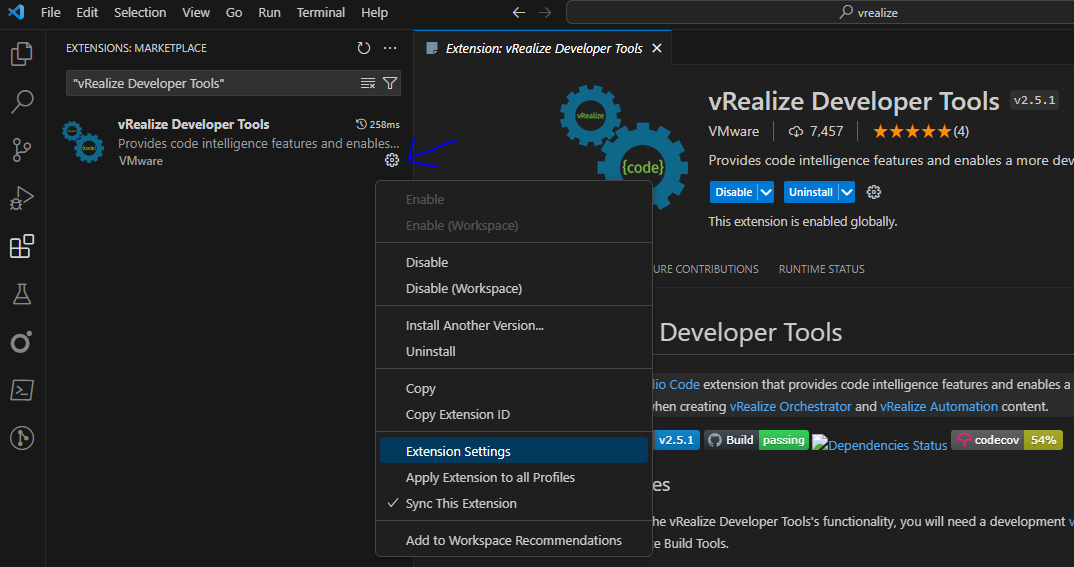
Set Build Tools Default Version to the required version. I used 4.2.1, the latest version when I wrote this post.
Open the command palette and search for vrealize to see the extension's commands.
Change the active profile
Use vRealize: Change Active Profile to select the active connection to VCF Automation and VCF Operations Orchestrator.
Profiles are those that have been defined in the Maven settings.xml file.
I find profile switching useful for viewing content from a specific environment. I have not found another use for it.
Create projects
Use vRealize: New Project to create a supported Build Tools project. Part 2 of this series describes the options: VCF Automation – Build Tools for VMware Aria – Overview of VCF Automation Projects.
Select a project type. This example uses vRO JavaScript-based.
Enter the group ID. This example uses com.simplygeek.

Enter a project name. This example uses vro-javascript.
When prompted, choose where to create the project. I use a root folder called vcf-automation.
The project opens in a new VS Code window.
You can now create the JavaScript content in this new project.
IntelliSense support
The vRDT extension's vRO Language Server provides IntelliSense for JavaScript actions. It supports only plain text username and password authentication in settings.xml. Code completion does not work with refresh tokens.
Code completion detects Orchestrator plugins and built-in wrapper classes. In this example, System.getModule displays module paths from my environment.
Here is another example using the Active Directory plugin.
However, no information is provided about the parameters required.
I find this feature of limited use, particularly because it does not support refresh tokens. I will revisit this section if the vRO language server changes.
Browse and fetch Orchestrator content
The content browser is the extension feature I find most useful. Select the vRealize Developer Tools icon in VS Code's left-hand panel to explore Orchestrator content and fetch remote files.
This example displays a remote workflow in the IDE:
This example displays a remote action:
The extension transpiles the action for display in the IDE, which I find useful.
You can also browse the Orchestrator inventory:
Run JavaScript actions
In a vRO JavaScript-based project, open an action to run it from the IDE. The run control is a lightning bolt icon at the top right of the editor.
Actions with parameters are not supported. This was reportedly planned for a future vRDT release. Attempting to run one produces output like this:
The action does not run or produce output because its parameters were not supplied.
As a workaround, create a temporary JavaScript file that calls the action with its parameters. The target action must already exist on Orchestrator: push it from the local repository first.
For this example, I created runActionWithParams in Orchestrator. It accepts x and y and prints them to the console. The following local JavaScript wrapper calls it:
The wrapper produces this output:
I find this feature of limited use and prefer to run actions in the Orchestrator appliance.
Other commands
I have omitted other vRDT commands because they did not work in my environment.
I hope this has provided some insight into the vRealize Developer Tools extension. If you have had different experiences or if you feel there is something I have missed that you find useful, then please comment and share.
Related articles

VCF Operations Orchestrator: Why I Write Actions and Not Workflows (Mostly)
Why I move Orchestrator logic into reusable JavaScript actions, keep workflows small and use development tools for testing and code review.

VCF Automation – Native Git Integration vs Alternatives
Compare native Git integration, APIs, Terraform and Build Tools for managing VCF Automation infrastructure and content.

How I Write Beautiful Code in VCF Operations Orchestrator using ESLint and Prettier
Configure ESLint and Prettier for Orchestrator JavaScript development, including command-line checks, VS Code formatting and performance tuning.
Join the discussion
Sign in with GitHub to leave a comment. View discussions on GitHub.